.sidebar .widget {border-bottom: 1px solid #000000;}

Thursday, 8/30/12

All Sections:
  1. Click the following link to open the document:  Student Info Sheet
  2. Download and save the document to your documents folder
  3. Rename the document with your last name
  4. Complete the information (use Photobooth to take your picture).
  5. Upload the document to your Google Docs (DO NOT ALLOW IT TO BE CONVERTED TO A GOOGLE DOC--WHEN THE WINDOW APPEARS, CLICK OFF THE BOX FOR CONVERTING TO GOOGLE DOCS) 
  6. "Share" it with me (lmiller@nbisd.org)

Video:
Open Photoshop, then:
Watch and follow along with the video called:  Custom Workspace
(Forget how to get to the video page?  Click on the Resources tab above, then click on the link to the Graphics Design and Photoshop/Web Files)


Wednesday, 8/29/12

Today you will learn to move around the Mac a little more efficiently, and to set up your space to suit your taste.  Click on the
"Resources"
link above, then click
"Graphic Design and Photoshop/Web Files"
to find the site that hosts almost all the videos and files you will need for this class.

Watch the following videos, then complete the tasks below.  (Watch all the videos first.)
Mac 1, 2, and 3
Tasks:
  1. Although you cannot get to the Dock Preferences, you can go to the Apple, then Dock to move the Dock or change how it looks.  You do not have to change how it looks, but you do need to have the following on your dock: 
    • Photoshop (make sure to "dock" the application, not the folder)
    • Firefox
    • iTunes
    • Microsoft Word
    • System Preferences
    • iPhoto
    • iMovie
  2. Set up your "Places" (the video shows this as "Favorites") sidebar in the following order, top to bottom:
    • Desktop
    • Documents
    • Applications
    • Pictures
    • Movies
    • Downloads
    • Anything else you want to keep in the Favorites can go after Downloads
  3. Set up your desktop background to show anything other than the basic one (Note:  you will have to find an image on the web and right click it to make it your background, because the Preferences is unavailable.)
  4. Create a shortcut to the "Graphic Design/Photoshop and Web Files" website

Dropbox


Have you heard of this great service?  It's called Dropbox, and it allows you to store things on your computer and the internet (in your own "dropbox") at the same time.  I love it!  If you like to take files home to work on them, or you have music or pictures at home you'd like to use in one of your projects, this is a perfect solution.  You don't have to worry about losing your flash drive and you can back up your work any time!  The first 2 Gigs are free--so you don't even have to pay for it!

Just click this link:  http://db.tt/JEysdiE (or copy and paste it) and sign up.  It's very easy, and by going through this link you'll earn extra space for yourself and our classroom folder.


Call for Artists: Design our faculty t-shirt! Earn money!

The faculty t-shirt for 2012-13 will center around the theme "It's all about U!"  The design for the t-shirt is a unicorn pointing, like the old Uncle Sam posters.  The school is willing to pay up to $50 for the design.  Email me by July 3rd (at lmiller@nbisd.org) to let me know if you're interested. 

10 Gift Card Envelopes You Can Make

Tis the season for gifts!  Around our house, the end of May might mark the end of the school year, but it marks the beginning of the gift giving season for us.  Graduation, Father's Day, and NINE birthdays all fall between May 29th and June 29th! Add that to teacher gifts and coaches' gifts and, well, you get the idea.

What makes life easier during this time of year?  Gift Cards!

So to make life even easier, I designed a number of gift card envelopes that can be printed, cut and folded to give along with the card.  You can download these and print them yourself, but to make the envelope even more personal, use the recipient's face on the front.  She will think you are oh, so clever (which, of course, you are!). 
Photo Print and Cut Gift Card Envelope

Effects

What I'm playing with now...

Retro effect

Oil painting effect

You Break Me Up!


Photo of four siblings to be used as example by Photoshop teacher
Before

"After" Photo of siblings seemingly broken by following Photoshop brush video tutorial
After
Learn to "break apart" a photo by creating your own brush settings. Make photos look as if they've been torn to shreds or cut into squares.  With a little manipulating, you could even create your own puzzle.

Here is the video to get you started:  School AccessPublic Access
Here is the photo to follow along, or you may use any photo you like:  Break Apart Photo

Board Book Remake with Photoshop


We have a beautiful little girl staying with us until her mother returns from deployment.  I decided to make a board book for the baby (she is still a baby, relatively speaking) with photos of her mother.  

Here is the first stage:  Creating the Pages in Photoshop

child's board book ready to be altered by Photoshop teacher
First I found a board book at the thrift store that had seen better days.  This one, 
in fact, was destined for the trash bin at the end of the week.
Board book remake in Photoshop: Room 626 Photoshop teacher Linda Miller measuring width of book
Next I measured the dimensions. 

Board book remake in Photoshop: Room 626 Photoshop teacher Linda Miller measuring height of book
It turned out that this one was exactly
six inches square.


Creating Professional Photo Pages

Professional Photo Album spread example for Room 626 Photoshop students
Professional Photo Album 2-page spread:  New Car
Want a project that will give you some "real life" experience in Photoshop as well as allow you to choose your own subject?  Then here it is:  Professional Photo Album Design.

Photoshop Elements

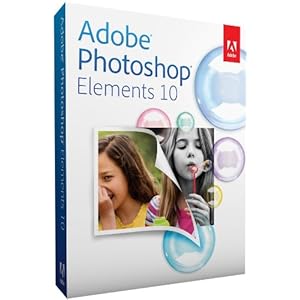
Adobe Photoshop Elements box


Did you know that Adobe makes a product similar to Photoshop, but more affordable?  It's called Photoshop Elements.  It's sort of like a combination of Photoshop and Lightroom, except instead of $600, it's under $100 (in fact, Amazon just dropped the price to $82.22.)

Also, Adobe offers a pay-as-you-go program as well.  Sort of like leasing Photoshop.

Lastly, there is a free program called Gimp, which is like Photoshop but offers way, way, WAY less tools and filters and all that good stuff.  But it's good for basic photo editing.

Student Showcase: Magazines

This was a fun optional project for students to just "play with Photoshop."

Magazine designed in Photoshop by Room 626 Photoshop student
Alexandria

Put Your Face on the Cover of a Magazine!


Ever wanted to be famous and appear on the cover of a magazine?  
Here's your chance!