- What types of curves do you make with the pen tool? (Hint, starts with a B and is the type of curves used in computer graphics)
- What is the shortcut for the pen tool?
- What is a path called that has not been closed?
- How do you deselect a path? (shortcut)
- What happens when you forget to deselect and you start another path?
- How do you constrain your lines to perfect horizontal or vertical lines?
- What is the shortcut for the direct select tool?
- How do you delete one side of a handle? (what key(s) do you hold and where do you click?)
- How do you move one side of the handle without changing the other side of the handle? (what key(s) do you hold while dragging?)
- What does the narrator call the tops, bottoms and sides of an image where you click and drag?

Pen tool quiz questions (Gaming Graphics)

1/13/14
All classes:
Photoshop 1:
Assignment: - Finish Calendar:
- Vocabulary: You're on your own!
Don't forget to write the caption.
- Go to the videos and files page and find the link for the Calendar project.
- Go to this link and download all the images that start with "adj layers"
- There are 5 videos for this project.
- This is a "Review Project," meaning you will use skills that, for the most part, you have already learned.
Photoshop 2:
Assignment: - Poster editing and/or catch up day
Gaming Graphics:
Assignment: - New comic assignment: Create a 4 panel comic using skills incorporating speech bubble, thought bubble, at least one sound graphic. You may use previously created sprites for your characters.
- Notes for quiz
1/10/13
All classes:
Photoshop 1:
Assignment: Calendar ReviewVocabulary: You're on your own!
Don't forget to write the caption.
- Go to the videos and files page and find the link for the Calendar project.
- Go to this link and download all the images that start with "adj layers"
- There are 5 videos for this project.
- This is a "Review Project," meaning you will use skills that, for the most part, you have already learned.
Photoshop 2:
Assignment: - Finish Poster
Gaming Graphics:
Assignment: Comic Elements: Speech Bubbles and Sound Graphics
- Right click on the link and save to your computer
- Follow the tutorials and upload both images to one blog post called Comic Elements.
- Write a caption for each image.
1/9/13
All classes:
Photoshop 1:
Assignment: - Use this link below to learn how to create patterns. Create at least 4 patterns.
- Create a new file in Photoshop and select 1/4 of the page using your marquee tool. Fill the section with one of your new patterns.
- Repeat with the other 3 sections of the page using your other 3 patterns.
- Don't forget to write your caption!
- Your finished assignment will look something like this (but with your own patterns of course):


Photoshop 2:
Assignment: - Finish Poster
- Note: for some reason I thought I was giving you 3 days, not just 2.
- I will ask the teacher not to come look at them until Friday afternoon, just in case anyone needs more time for this.
Gaming Graphics:
Assignment: - Right click on this pen tool link and save the file to your desktop. Double click the file to open it as a folder. Follow along with the video using the worksheet files, which are also in the folder.
- At the end of the first video, export your file as a png.
- Go on to the second video, and at the end, export that file as well.
- Upload both files to your blog and write a sentence about what you learned.
1/8/13
All classes:
Photoshop 1:
Assignment: - Finish Review
Photoshop 2:
Assignment: - Create recruitment poster for Auto Mechanics
- 13 x 19 OR 19 x 13
- 300 resolution
- You may use any of the photos in this compressed file, however, do NOT use the same girl twice. There are three girls, so you will have one, two or three photos on your poster.
- You may use the slogan: It's Not Just a Guy Thing OR you can make up one of your own.
- Include a tag line, like: Take Auto Mechanics (I know you can do something more clever than that)
- Give it some sort of background, but do not use colors that will overpower your message.
- Google for inspiration. Possible searches: school promotional posters, promotional posters, poster backgrounds, designing promotional media
- If you use one photo and want to blow it up extra large, make sure you put extra effort into the text
- You will give me the Photoshop file and upload a jpeg to your blog along with an explanation of your process.
- Due by the end of the day Thursday
- Note: Three posters will be chosen to print and post here and at the 9th grade center
Gaming Graphics:
Assignment: Finish Pen Tool Tutorial
1/6/14-1/7/14
All classes:
Welcome back and Happy New Year!!!
Photoshop 1:
Assignment: Review (3 days)- Do each of the following.
Post before and after images for 1-6.
Post final images for 7-10.You have done all these tasks before. If you need help, ask each other and/or check the Videos and Files page for the original tutorials.
- Crop a photo so it has a white border all around it
- Swap heads in a photo with at least 2 people in it
- Change the color of someone's shirt
- Put muscles on someone using the Liquify filter
- Use puppet warp (under the Edit menu) in any way you want
- Find a photo of one animal in a field and use the clone stamp to put more animals in the field
- Make a path and put text on it
- Make clipped text
- Blend 3 images using gradient blend technique
- Wrap a picture around a coffee cup
Photoshop 2:
Assignment: - Do the review above, only in 2 days instead of 3.
Gaming Graphics:
Assignment: Illustrator Pen ToolRight click on this pen tool link and save the file to your desktop. Double click the file to open it as a folder. Follow along with the video using the worksheet files, which are also in the folder.
12/13/13
All classes:
Gaming Graphics:
Assignment: - Continue working on Guess Who game.
Photoshop 1:
Assignment: - Continue working on Guess Who game.
Photoshop 2:
Assignment: - See Mrs. Miller for final exam assignment.
- Link to images is here.
- Finished size: 13 x 19, 300 resolution
- First: research how to enlarge images without losing pixels.
- Enlarge both your images before combining them.
12/9-13/13
All classes:
Make sure you know what your final exam assignment is!
3rd period:
Gaming Graphics:
Assignment: - Learn to print cards and directions in color.
- Make changes to game. Print in color.
- Work on Guess Who game
Photoshop 1:
Assignment: Holiday Card- Project: Create a holiday card!
- Create a new file in Photoshop, using a resolution of 300 and a size of either 8.5" wide by 11" tall or 11" wide by 8.5" tall--just depends if you want to do a landscape or portrait design.
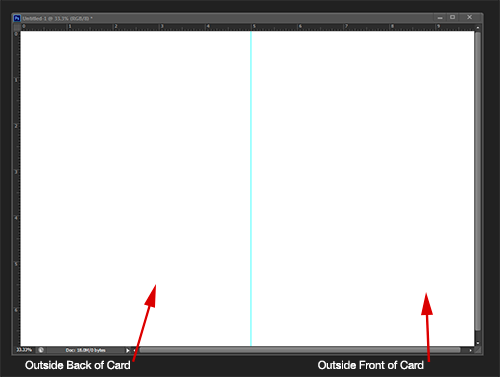
- Drag a guideline to divide your card in half. Create your design on only one side. The other side will be the back of your card once it's printed out and folded.
(Here is an example of a horizontal layout) - The card MUST BE YOUR ORIGINAL WORK--you may not use backgrounds from the internet or artwork or images from the internet, BUT you may take just a bit from this one and a bit from that one and combine a bunch of them to make your own work.
- Do a Google search on how to create a holiday design in Photoshop. Or search for something specific, like how to create a snowman, or snowflakes. Or a snowstorm. Or Santa.
- The message is up to you! Be creative. Be funny. Be serious. Be sardonic (look it up). The choice is yours.
- On the back of your card, put
- your information (using your first name and last initial) and
- copyright information and
- a small graphic from the front of your card (example)
- Upload a screenshot of your layers (appropriately named) along with your final image.
- Write 2 to 3 sentences about how you completed the project. Be specific about what you learned!
- You will be graded on
- originality
- complexity
- skills learned (You must learn two new skills to get an A, one will get you a B)
- work ethic
- file specifications (see #1 above)
- image quality (when and if it is printed, there should be no pixelation. If you incorporate any outside images, make sure they are large.)
Project length: 4 days - Day 1: Look for card examples and find tutorials on new skills, set up your file, find any images you might want to use in your design (see links below to get you started)
- Day 2: Learn a new skill, incorporate it into your card design
- Day 3: Learn another new skill, incorporate it into your card design
- Day 4: Put it all together, upload to your blog

** Here are some quick searches I ran just to give you an idea:
- How to create a Holiday Card in Photoshop (examples)
- How to create a comet trail in Photoshop
- How to create a starry night in Photoshop
- How to create a snowflake in Photoshop
- How to create a snowman in Photoshop
- How to create snow in Photoshop
- How to create a cool background
Photoshop 2:
Assignment: - See Photoshop 1 assignment above. You may incorporate any of your previous tutorials and/or projects.
12/6/13
All classes:
Gaming Graphics:
Assignment: - Go over reviews
- Make changes to games
Photoshop 1:
Assignment: - Graphic Design/Photoshop 1:
Assignment:
- Today you are going to color a mosaic. You will use the paint bucket and at least 15 different colors.
- Download this zip file to your computer and double click it to open. You will have a folder of several images. Choose one of the images to color.
- Before you start work, set up your image:
- Delete the white from your image (use magic wand with anti-alias and contiguous unchecked)
- Create a new layer under your image and fill it with white.
- Upload your finished image to your blog as Color Mosaic.
Photoshop 2:
Assignment: - Complete a mosaic (see above) or
- Begin going through the pages on this site to start preparing for your certification exam
12/5/13
All classes:
Gaming Graphics:
Assignment: - Finish Board Game, Work on Guess Who
- Note: Guess Who will be your final exam grade, and it is an INDIVIDUAL PROJECT!
Photoshop 1:
Assignment: Graphic Design EvaluationWorking in groups, play and evaluate one of the board games from Gaming Graphics.
Evaluation sheets are available in the game box.
Everyone playing the game needs to contribute to the evaluation.
Use initials for your comments.
Photoshop 2:
Assignment: - Same as Photoshop 1
12/3-4/13
All classes:
Gaming Graphics:
Assignment: - Finish Board Game, Work on Guess Who
- Note: Guess Who will be your final exam grade, and it is an INDIVIDUAL PROJECT!
Photoshop 1:
Assignment:
Vocabulary: Octohedron, "paste into"
- Complete the Octohedron (see yesterday's blog for link) using your own images. Those of you who use images of yourself and/or family will get to have your Octohedron printed in color (suitable for gift giving.)
- Grading: All images must be pointing in the same direction, no images should be skewed out of proportion, no images should be pixelated, there must be text somewhere on it (like the year, your name, etc.)
- When you are finished with the Octohexdron, print it, cut it out and put it together.
- Take a photo of your finished Octohexdron and upload it along with your finished image.
- PS 1 or 2: Want extra credit?
Create an Octohedron of unicorn images (school related) we can give to the office staff.
Photoshop 2:
Assignment: - Note: This week during different class periods, you will be asked to play the Gaming Graphic's games and evaluate the playability and graphics.
- Finish and upload current project or begin studying for certification exam. See Videos and Files page for link to tutorials.
12/2/13
All classes:
Gaming Graphics:
Assignment: - Finish Board Game
Photoshop 1:
Assignment: Vocabulary: Hexahedron, "paste into"
1: Printed Hexahedron Ornament
2: Work on Guess Who game (Guess What is going to be your final exam grade?)
- Assignment:
- Download the three files for today's assignment (use the user name "myfiles" and password "unicorn": Link to files
- Open the Hexahedron file and all the images from the zip file (open them in Photoshop).
- Using the "Paste into" command (edit, paste special, paste into) copy and paste the images from the zip file into each of the sections of the Hexahedron.
- Print out your Hexahedron and put it together.
- Take a picture (Photo Booth) of your finished Hexahedron and upload it along with your finished image to your blog.
- Note: tomorrow you will complete the Octohedron using your own images. Those of you who use images of yourself and/or family will get to have your Octohedron printed in color. The final project will be suitable for gift giving.
Photoshop 2:
Assignment: - If you have not done so, upload a screenshot of your finished game.
- Provide a link to your game. You should be able to get a link once you create an account with Tiny Tap.
- Finish and upload current project or begin studying for certification exam. See Videos and Files page for link to tutorials.
Subscribe to:
Posts
(
Atom
)